

Applies to: Minecraft Java Edition · Fabric and Forge servers
A modpack is a curated collection of mods bundled together. Installing a modpack replaces individual mod management with a single install.
There are two ways to install modpacks on your Minecraft server:
- Modpack Manager: (Recommended) The easiest way to install modpacks on your server.
- File Manager: The manual way to install modpacks on your server.
Before you start
- Know that installing a modpack will overwrite your current mods and configuration. Back up your server first. See Back up your Minecraft server.
- Know which modpack you want and where it’s hosted (CurseForge or Modrinth are the most common sources).
- Note the modpack’s required Minecraft version and mod loader (Fabric or Forge). Your server software must match.
Install modpacks using the Modpack Manager (recommended)
- Sign in to your Syrup dashboard.
- Go to Tools > Modpack Manager.
- Browse the list of available modpacks for the one that you want to install. Use the search field or sort the page to find what you’re looking for.
- On the modpack that you want to install, click Install.
- From the Version dropdown menu, choose the version of the modpack that you want to install.
- (Optional) Toggle on Format.
Note: If you enable the format option, all existing files will be deleted before installing the modpack. - Click Install. The modpack is installed. You’ll see a notification when it’s done.
- Go to the File Manager and open /mods. You’ll see your newly installed mods from the modpack.
Install modpacks using the File Manager
- Download the modpack’s server pack from CurseForge or Modrinth. This is separate from the client pack. Look for a download labelled “Server Pack”.
- Sign in to your Syrup dashboard.
- Stop your server. See Start, stop, or restart your server.
- Back up your world. See Back up your Minecraft server.
- Open the File Manager.
- Delete or move your existing /mods folder.
- In the File Manager, open /home/container.
- Click Upload and select the compressed server pack.
Note: If the server pack is too large, you’ll see an error message. Use SFTP to upload the server pack instead. - On the compressed file that you uploaded to /home/container, click the three dots (…) icon and select Decompress.
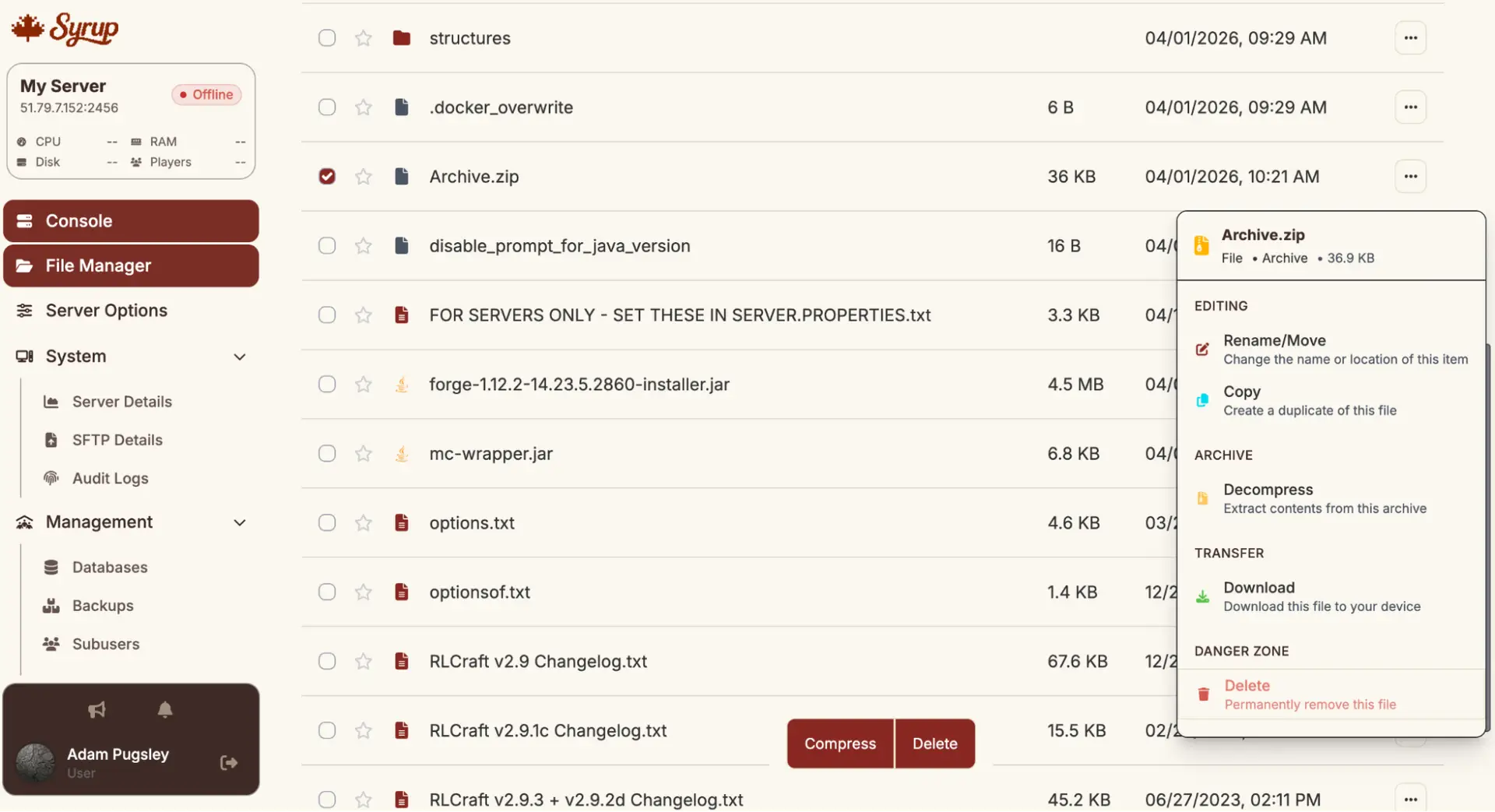
The files are decompressed and will now be shown in your File Manager. - Make sure the server jar is the correct Forge or Fabric version specified by the modpack.
- Start your server and watch the console output.
Note: Not all modpacks provide a server pack. If there’s no server pack, you’ll need to install the mods manually. The mod list is usually available on the modpack’s CurseForge/Modrinth page.
Install modpacks using SFTP
SFTP allows you to upload modpacks to your Syrup server that are too large to upload using the File Manager.
Before you begin
You need an SFTP client on your computer. FileZilla is the most common free option. WinSCP is another good Windows choice.
Steps
- Download the modpack’s server pack. This is separate from the client pack. Look for a download labelled “Server Pack”.
- Unzip the server pack on your computer. You want to upload the contents of the zip, not the zip file itself.
- Sign in to your Syrup dashboard.
- Go to System > SFTP details.
- Take note of your Connection address and Username. You’ll use these in your SFTP client.
- In your SFTP client, connect to your Syrup server using your Connection address, Username, and Password. The password is the same one you use to sign in to your Syrup dashboard.
- Upload the files from your serverpack to your Syrup server’s root directory: /home/container. This will take some time depending on how many files you’re uploading.
Note: If you have existing files and folders on your Syrup server that you want to keep, like your /world folder, don’t overwrite them. - Once all of the files are uploaded, open the File Manager in your Syrup dashboard. You’ll see the new files displayed. Make sure the server jar is the correct Forge or Fabric version specified by the modpack.
- Start your server and watch the console output.
Check if it worked
After you install the modpack, the modpack’s mod list will appear in the console during startup. You can also run the appropriate command for your loader to list loaded mods:
- Forge: /forge mods
- Fabric: check startup logs
Common issues
| Problem | Fix |
| Server crashes immediately | Check the crash log. This is usually caused by a missing dependency, wrong Forge/Fabric version, or insufficient RAM. |
| “Mod list mismatch” on client join | Players need to install the client version of the modpack via CurseForge or Modrinth. |
| Modpack server pack not available | Check the modpack’s CurseForge/Modrinth page; some modpacks only provide client packs. |
Still stuck?
Contact support with: the modpack name and version, the mod loader and Minecraft version, and the crash log.