

Install plugins on your Minecraft server
Applies to: Minecraft Java Edition · Paper, Spigot servers only
Plugins require a Paper or Spigot server. They don’t work on Vanilla, Fabric, or Forge.
There are two ways to install plugins on your Minecraft server:
- Plugin Manager: (Recommended) The easiest way to install plugins on your server.
- File Manager: The manual way to install plugins on your server.
Install plugins using the Plugin Manager
The Plugin Manager is the easiest way to install plugins on your Minecraft server.
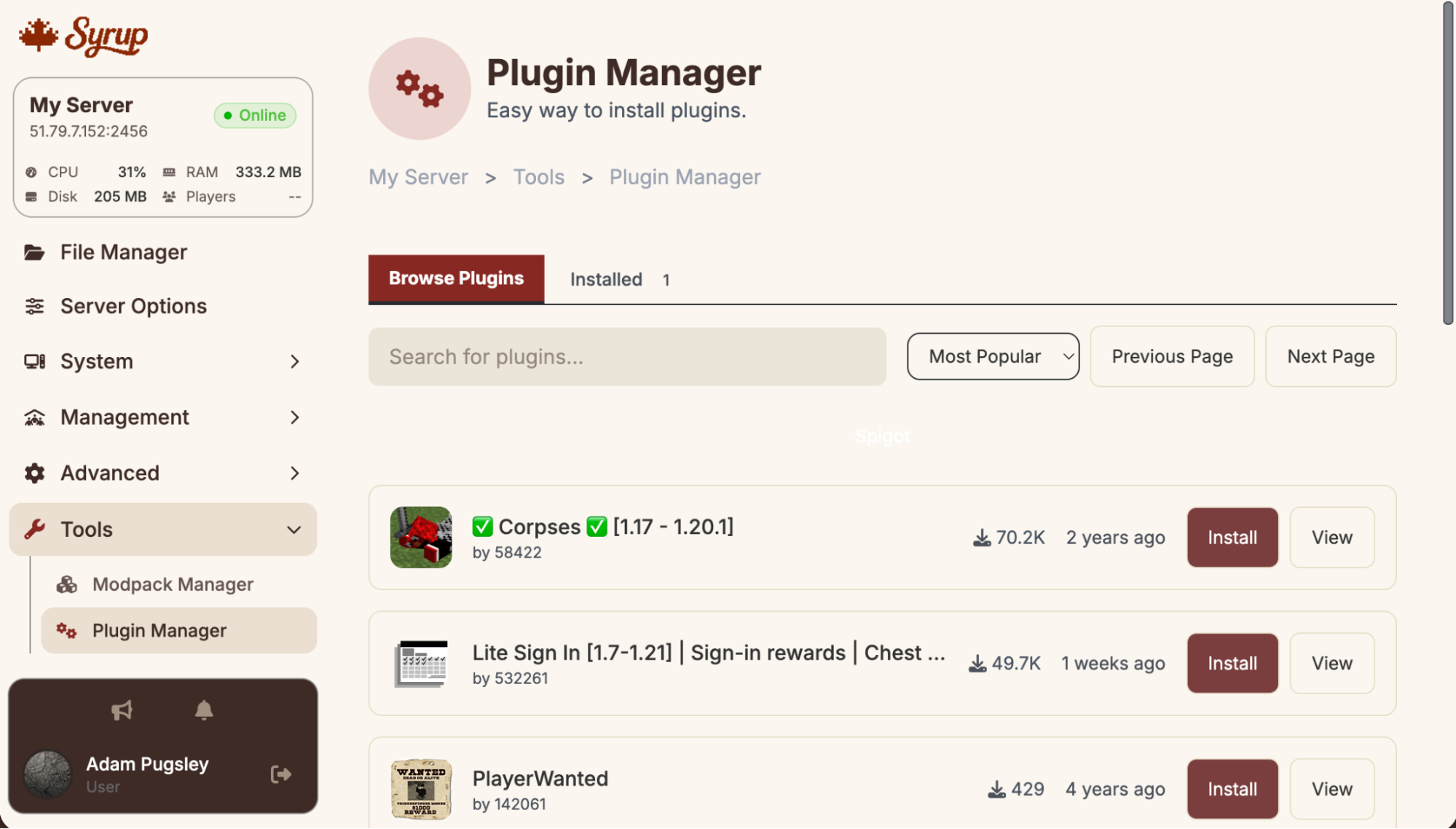
Before you start
- Back up your server before adding new plugins. See Back up your Minecraft server.
- Make sure the plugin version supports your server’s Minecraft version.
Steps
- Sign in to your Syrup dashboard.
- Go to Tools > Plugin Manager.
- Browse the list of available plugins for the one that you want to install. Use the search field or sort the page to find what you’re looking for.
- On the plugin that you want to install, click Install. The plugin is installed. You’ll see a notification when it’s done.
- On the Plugin Manager page, click the Installed tab. Your new plugin is shown in the list of installed plugins.
Install plugins using the File Manager
If you want to manually install plugins on your Minecraft server, use the File Manager.
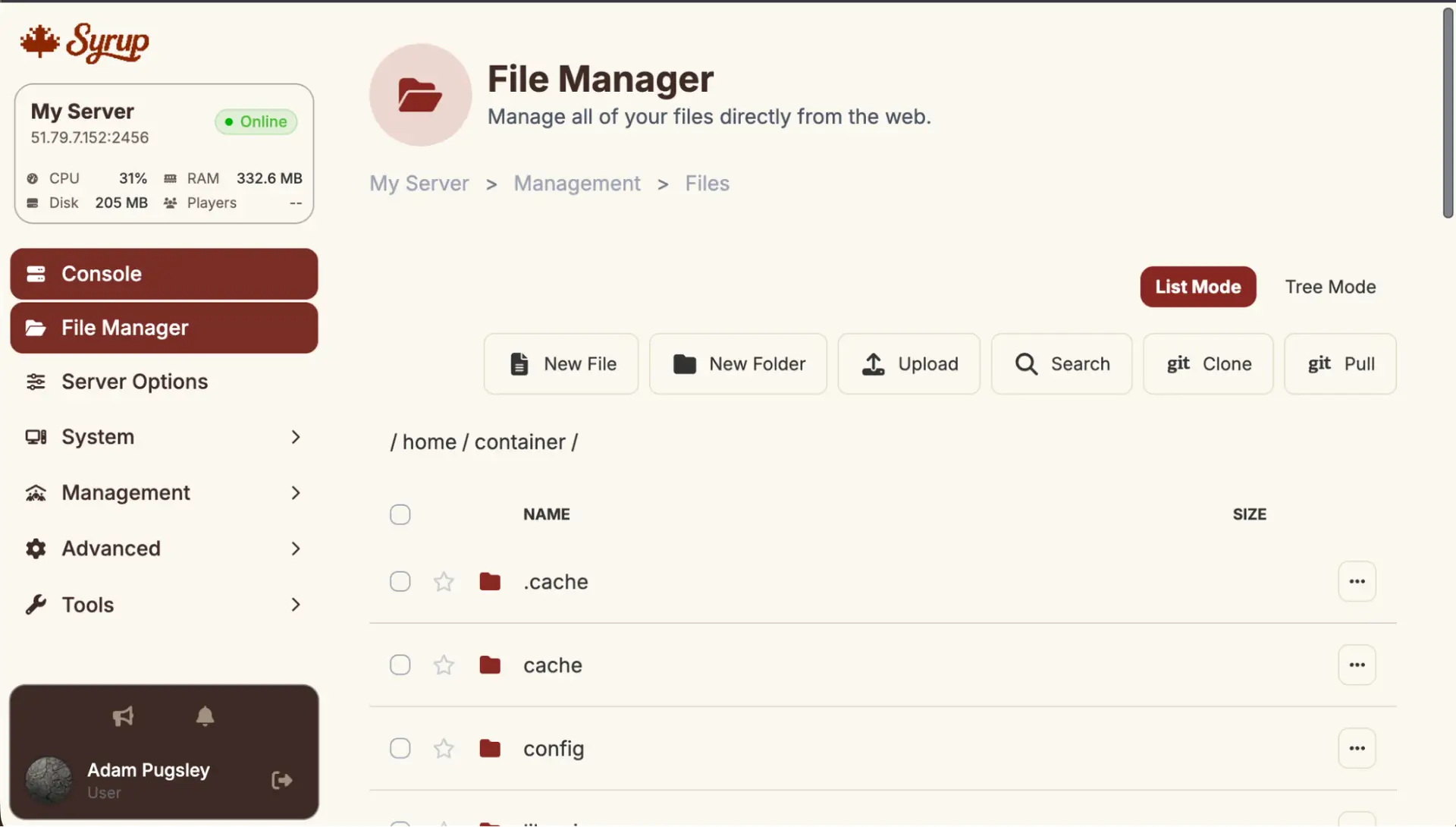
Before you start
- Back up your server before adding new plugins. See Back up your Minecraft server.
- Download plugins only from trusted sources: SpigotMC, Hangar, Modrinth, or Bukkit Dev.
- Make sure the plugin version supports your server’s Minecraft version.
Steps
- Download the plugin .jar file to your computer.
- Sign in to your Syrup dashboard.
- On the My Servers page, click Manage on your server.
- Stop your server. See Start, stop, or restart your server.
- Open the File Manager.
- Navigate to the /plugins folder.
- Upload the .jar file to the /plugins folder.
- Start your server.
- Watch the console for the plugin to load. You’ll see output like [PluginName] Enabling PluginName v1.0.0.
Configure a plugin
Most plugins create a config file in /plugins/PluginName/config.yml after first run. Edit this file to customize the plugin’s behaviour, then run /reload or restart the server.
Common issues
| Problem | Fix |
| Plugin doesn’t appear in /plugins list | Check the console for errors during startup. Common causes: wrong Minecraft version, missing dependency plugin, or corrupted .jar. |
| Plugin loads but isn’t working | Check the plugin’s documentation. Most plugins need configuration before they work. |
| Console shows Could not load plugin | Usually a version mismatch or a missing required plugin (dependency). Read the full error message. |
Still stuck?
Contact support with: the plugin name, version, your server version, and the full error text from the console.