

Applies to: All servers · All plans
Your Syrup dashboard is where you manage everything about your server.
From the dashboard, you can:
- Start and stop your server
- Install mods and plugins
- Manage users
- Manage files
- And more
Find your login details
After you purchase your plan, you’ll receive an email with your login information and a link to the Syrup dashboard.
Search your inbox for [email protected] or the subject line: New Dedicated Server Information. If you can’t find it, check your spam/junk folder.
If you need to recover your login credentials, go to https://dashboard.syruphosting.ca/login and click Reset Password.
Sign in to your dashboard
- Go to https://dashboard.syruphosting.ca/login.
- Enter your email address and password.
- Click Sign in.
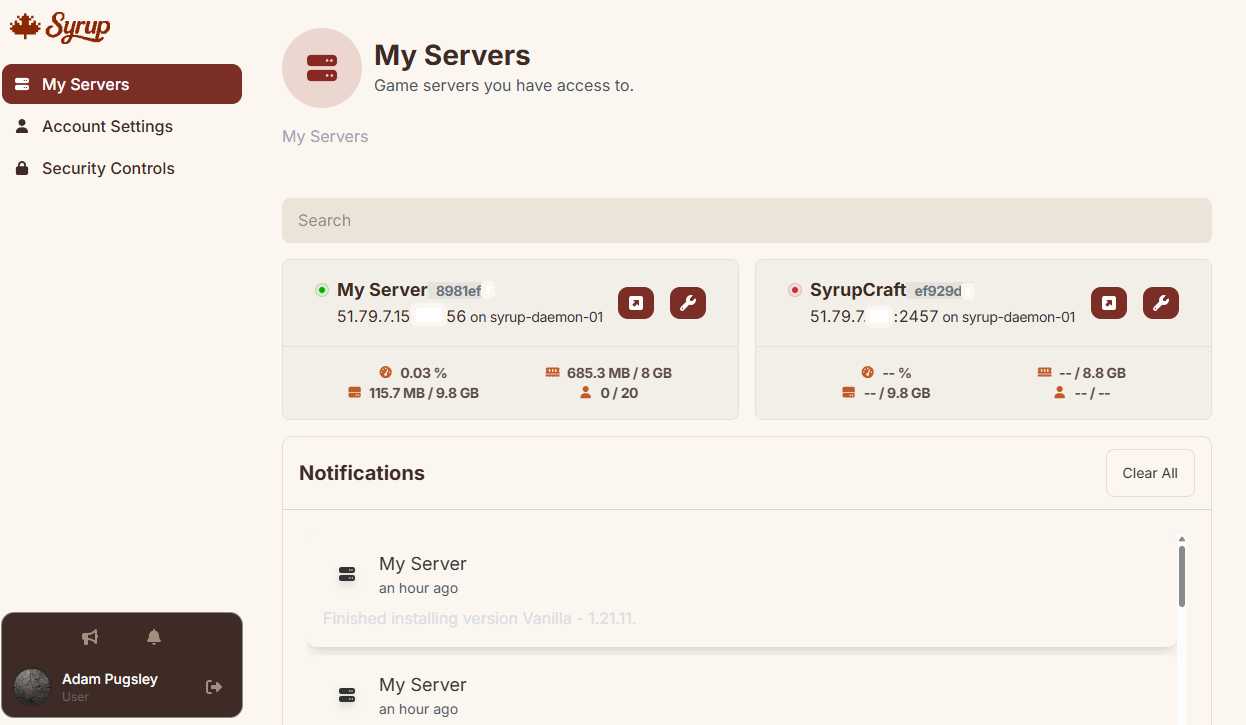
The Syrup dashboard opens and your server is displayed on the My Servers page.
Navigate the dashboard
On the My Servers page, you’ll see all of your Syrup servers displayed. Select a server to access the settings for that server and make changes.
Use the navigation menu to access the different pages of the Syrup dashboard:
- Console: Run commands directly on your server.
- File Manager: Access and manage the files and folders on your server.
- Server Options: Configure your server’s startup variables.
- System:
- Server Details: View and manage information about your server, like your server name, IP address, and limits.
- SFTP Details: View your account details for SFTP connections.
- Audit Logs: View a log of everything that happens on your server.
- Management:
- Databases: Create and manage databases on your server.
- Backups: Create and manage backups of your server.
- Subusers: Add subusers and manage their permissions.
- Allocations: Manage the IPs and ports that are available on your server.
- Advanced:
- Server Actions: Install different Minecraft editions, versions, and manage actions related to your server.
- Schedules: Create schedules and tasks to automate actions on your server.
- Tools:
- Modpack Manager: Find and install modpacks.
- Plugin Manager: Find and install plugins.
Reset your password
- Go to https://dashboard.syruphosting.ca/login.
- Enter your email address and click Reset Password.
- Check your email for a reset link and follow the instructions.
Common issues
| Problem | Fix |
| “Invalid credentials” | Double-check you’re using the email you signed up with, not a Minecraft account. |
| Reset email not arriving | Check your spam folder, or wait 5 minutes. If you didn’t receive it, open a support ticket here via Discord here, or send an email to [email protected]. |
Still stuck?
Contact support with your account email address.