

Applies to: All servers · All plans
The file manager lets you browse, upload, edit, and delete files on your server directly in your browser.
To access the File Manager:
- Sign in to your Syrup dashboard.
- Open your server.
- In the navigation menu, click File Manager.
The File Manager opens. You’ll see the root of your server directory. You can navigate the folders on your server from the File Manager.
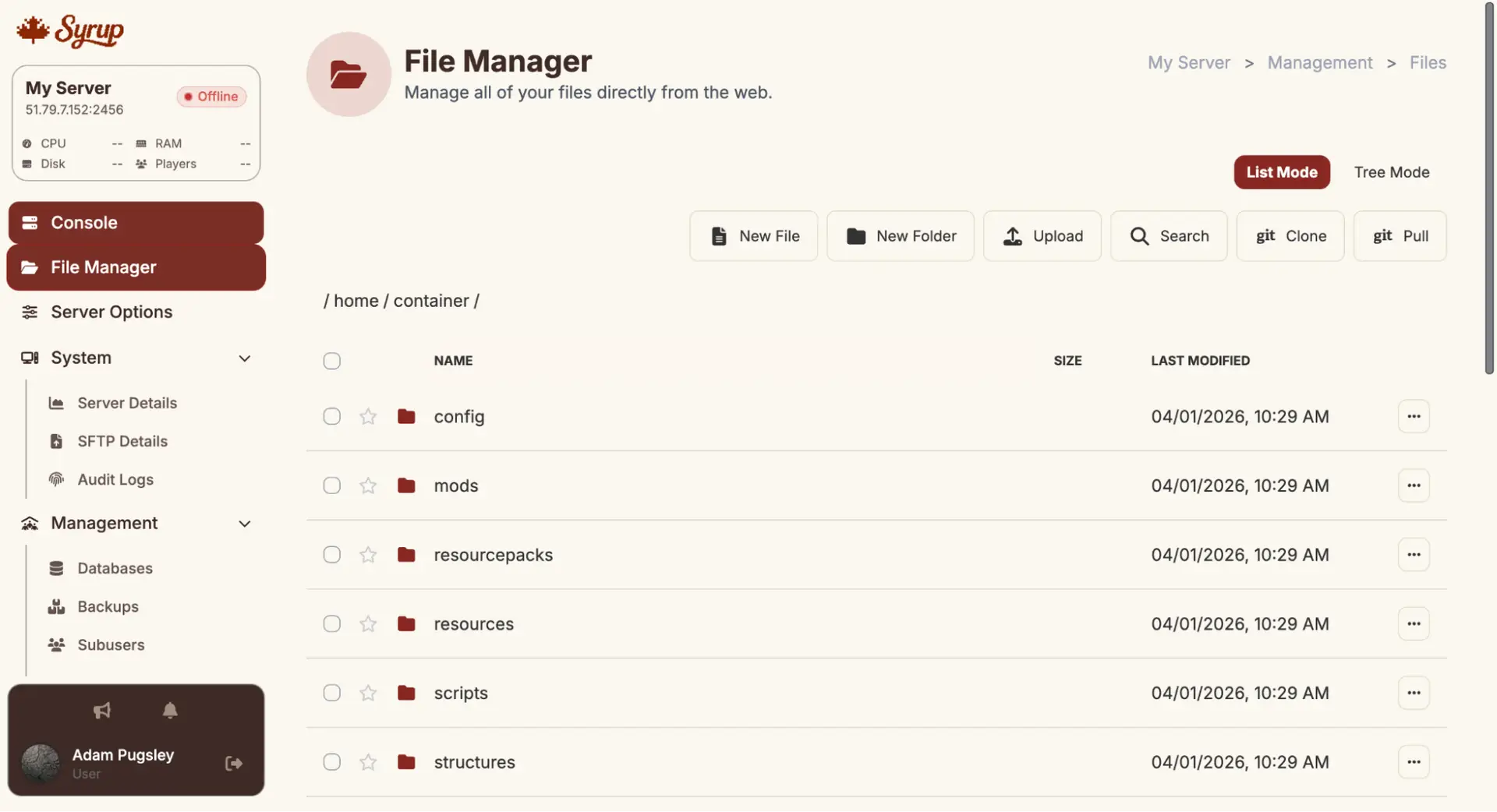 Key folders:
- world/: Your main world data
- plugins/: Plugin .jar files (Paper/Spigot only)
- mods/: Mod .jar files (Fabric/Forge only)
- config/: Plugin and mod configuration files
- server.properties: Core server settings
Upload files
- Navigate to the folder you want to upload to.
- Click Upload.
- Select the file from your computer.
- Wait for the upload to complete before starting the server.
For large files (modpacks, worlds), you’ll need to use SFTP. See Install a modpack on your Minecraft Server.
Edit a file
- Click the file name to open it.
- Make your changes to the file in the editor.
- Click Save File.
- Restart the server for changes to take effect (most configuration changes require a restart).
Create a new file
- Sign in to your Syrup dashboard.
- Open your server and click File Manager.
- Navigate to the folder that you want to create a new file or folder in.
- Click New File.
- In the File name… field, enter a name for your new file.
- Make your changes to the file in the editor.
- Click Save File.
Your new file is created and saved.
Create a new folder
- Sign in to your Syrup dashboard.
- Open your server and click File Manager.
- Navigate to the folder that you want to create a new file or folder in.
- Click New Folder.
- In the Folder name field, enter a name for your new folder.
- Click Create.
Your new folder is created and saved.
Delete a file
- Sign in to your Syrup dashboard.
- Open your server and click File Manager.
- In the File Manager, locate the file that you want to delete.
- Click the three dots (…) icon on the file and select Delete.
Note: Deleting files is permanent. Back up anything important before deleting. - Click Submit.
The file is deleted.
Common issues
| Problem | Fix |
| Upload fails or times out | The file might be too large for browser upload. Use SFTP instead. |
| “Permission denied” when editing | If you’re a subuser, you might not have the required permissions. Contact your server owner and ask them for File Manager permissions. |
| Can’t find a file | In the File Manager, click Search and enter the name of the file you’re looking for. |