

Applies to: All servers · All plans
Start your server
- Sign in to your Syrup dashboard.
- On the My Servers page, click Manage on your server.
- On the Console page, click Start.
- Watch the console output for a ready message. When you see it, your server is ready.
On the My Servers page, the server status is changed to Online.
Stop your server
When you stop your server, the server safely saves all player data and the world before shutting down.
- Sign in to your Syrup dashboard.
- On the My Servers page, click Manage on your server.
- On the Console page, click Stop.
- Click Yes, Stop Server.
- Watch the console output. When you see [WISP] Server marked as OFF, your server has stopped.
Note: Don’t close the browser tab or cut power while the server is stopping. Doing so can corrupt your world.
Restart your server
- Sign in to your Syrup dashboard.
- On the My Servers page, click Manage on your server.
- On the Console page, click Restart.
- Click Yes, Restart Server. The server will stop and start again.
- Watch the console output. When you see [WISP] Server marked as ON, your server is ready.
A restart is required after: installing or removing mods/plugins, changing server.properties, and most version changes.
Kill a frozen server
If your server stops responding and won’t stop normally, you might need to kill it.
Note: Killing your server skips the normal shutdown process. Unsaved world data since the last autosave might be lost. Only do this if the server is truly unresponsive.
- Sign in to your Syrup dashboard.
- On the My Servers page, click Manage on your server.
- On the Console page, click Kill.
- Click Yes, Kill Server.
- Watch the console output. When you see [WISP] Server marked as KILLED, your server has stopped.
Restart your server on a schedule
If you want to restart your server on a schedule, you can set that up from your Syrup dashboard.
- Sign in to your Syrup dashboard.
- On the My Servers page, click Manage on your server.
- Go to Advanced > Schedules.
- Click Create.
- Enter a name for your schedule.
- Choose a frequency:
- Every X minutes
- Every X hours
- Daily
- Weekly
- Monthly
- Enter the details for your chosen frequency. For example, if you chose Monthly, enter the Time and Day of Month.
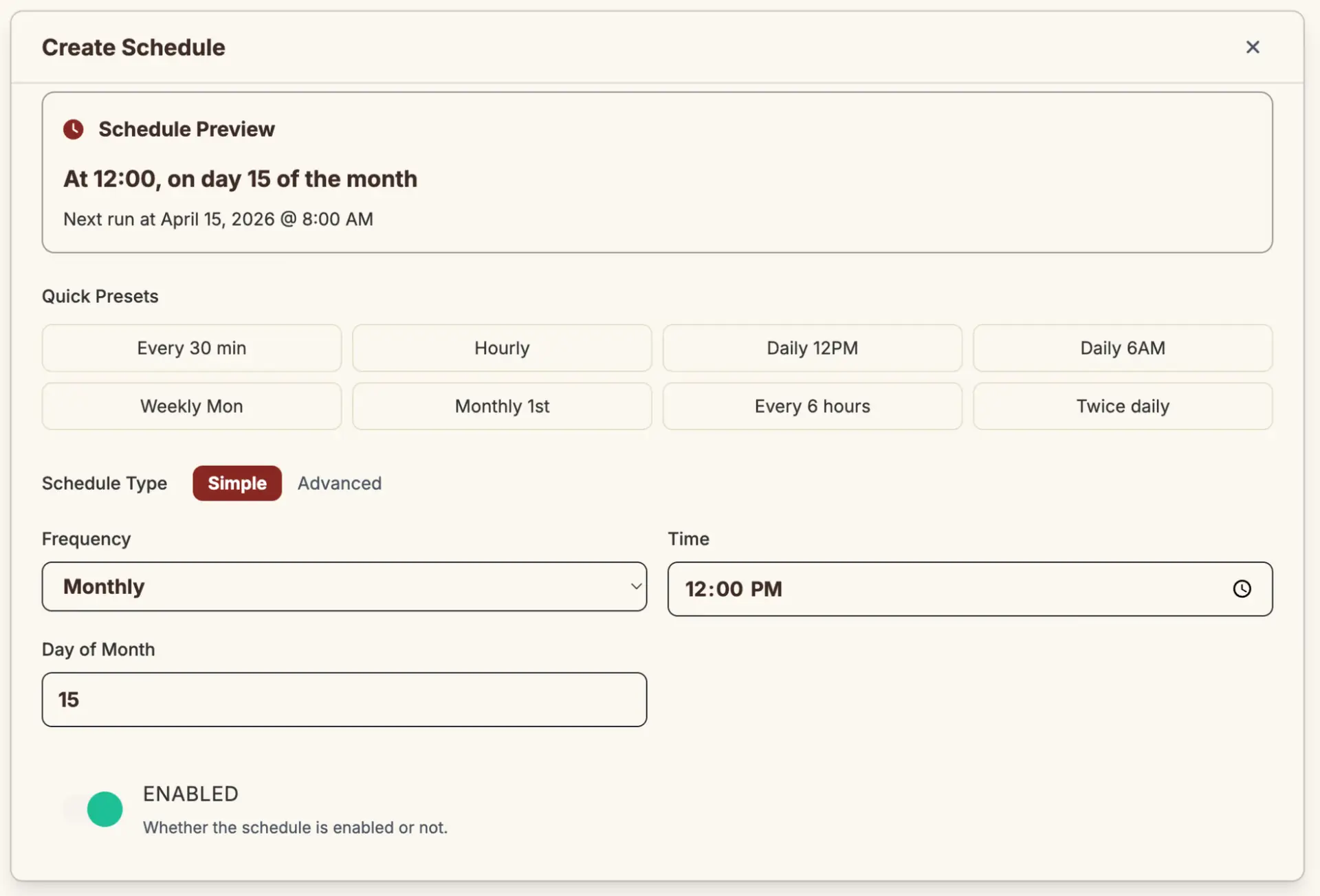
- Check the Schedule Preview panel and make sure the schedule is correct.
- Click Submit.
Your new schedule is created, and the Manage Schedule page is displayed. - Click Create Task.
- From the Action dropdown, select Send power action.
- From the Payload dropdown, select Restart the server.
- Click Submit and close the Create Task dialog.
On the Manage Schedule page, you’ll see your schedule and the restart action. Your server will automatically restart on the schedule you created.
Common issues
| Problem | Fix |
| Server won’t start | See Minecraft server won’t start. |
| Server starts but immediately stops | Check the console for error output. Most commonly a missing EULA, out-of-memory error, or broken mod. |